✕

Install on Phone

How to Set Up an eSIM on iPhone

01
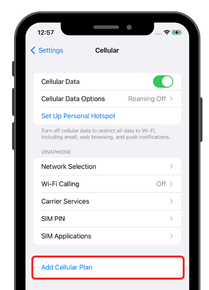
iPhone eSIM setup step 1
Go to Settings > Cellular > Add eSIM
02
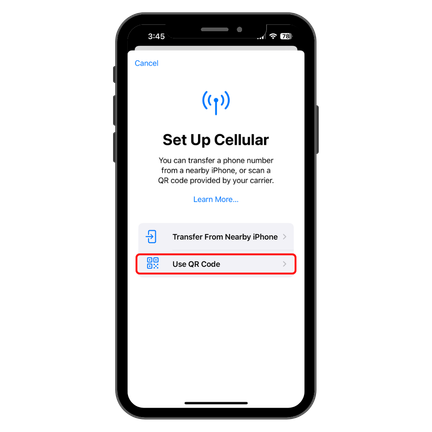
iPhone eSIM setup step 2
Use QR Code
03
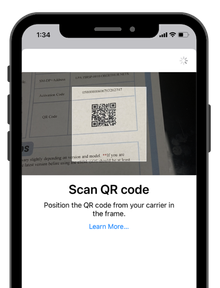
iPhone eSIM setup step 3
When the camera opens, scan the QR code
04
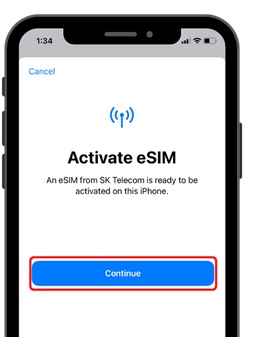
iPhone eSIM setup step 4
On the Activate eSIM screen, tap “Continue”. Once the installation is complete, the eSIM will be added to your iPhone.
The eSIM installation is now complete.
05
iPhone eSIM setup step 5
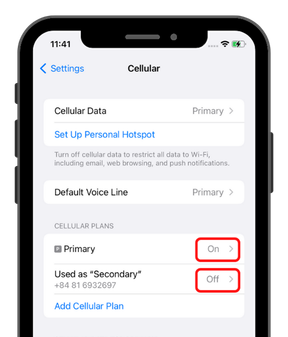
While you are still in your home country:
Go to Settings → Cellular → SIMs
  • Primary (Vietnam SIM) → Turn ON
  • Secondary (Overseas SIM) → Turn OFF
06
iPhone eSIM setup step 6
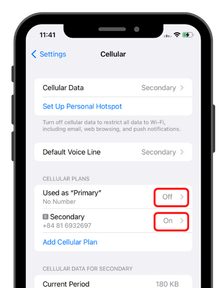
At your destination:
  • Primary → turn OFF
  • Secondary → turn ON
  • Turn on Data Roaming
Mobile data will switch to the overseas eSIM

How to Set Up an eSIM on iPhone Android

01
Android eSIM setup step 1
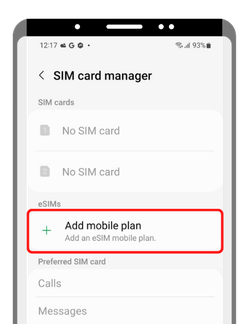
Go to Settings > Connections > SIM Manager > Add eSIM
02
Android eSIM setup step 2
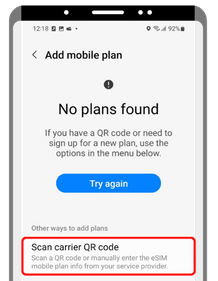
Use QR Code
03
When the camera opens, scan the QR code. If saved, select it from your Gallery
04
Android eSIM setup step 4
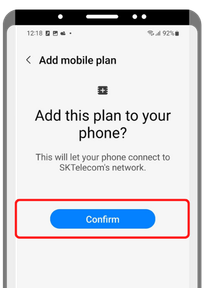
Tap “Confirm” to continue. Installation may take 2–3 minutes, depending on your device.
05
Android eSIM setup step 5
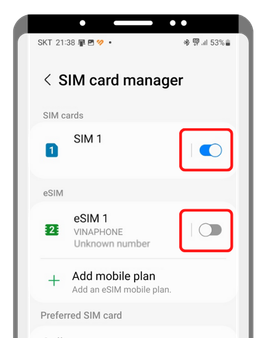
After installation, a new “eSIM1” will appear:
  • SIM1 → ON (VIETNAM SIM)
  • eSIM1 → OFF (OVERSEAS SIM)
06
Android eSIM setup step 6
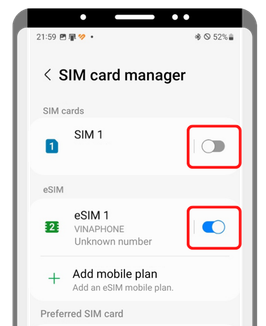
At your destination:
  • SIM1 → OFF
  • eSIM1 → ON
Mobile data will automatically switch to eSIM1 (overseas eSIM)
07
Android eSIM setup step 7
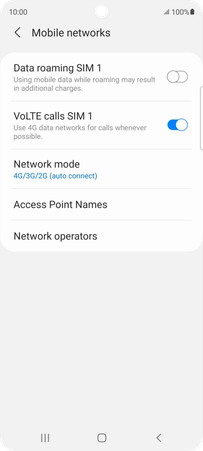
Turn on Data Roaming
To turn on data roaming: Settings > Data roaming > Details (or Settings > Connections > Mobile networks > Data roaming)